Schlagwort: MacOS

  • Instant Focus Boost: Tap into Mac & iOS’s Hidden Soundscapes!

    In a world where distractions are just a notification away, finding focus can sometimes be a tall order. Whether it’s for work, study, or just some quiet reading time, the presence of background noise such as White Noise or the soothing sounds of ocean waves can be the concentration aid many individuals need. This is not just anecdotal; a study published on the British Psychological Society’s Research Digest reports that white noise can boost attention and creativity, albeit the improvements are modest. Here’s the link to the study for those interested in the details. Now, if you’re a Mac or iOS user, there’s good news: your devices come with a built-in feature to help you immerse in these concentration-enhancing sounds. Let’s dive into how you can leverage this Background Noise feature to create your ideal focused environment.

    Indeed, it’s quite straightforward to access and utilize the Background Noise feature on your Mac or iOS devices. Here’s a quick tip on how to set it up:

    1. Open the ‚Settings‘ on your Mac or iPhone/iPad.
    2. Navigate to the ‚Control Center‘ section.
    3. Look for the ‚Hearing‘ option and select ‚Show in Control Center‘ or hit the plus button on iOS, respectively.

    6 high-quality sounds at your finger tips

    With these simple steps, the little ear icon will now be a part of your Control Center, ready to serve you with calming sounds at a moment’s notice. Once you’ve added the Hearing option to your Control Center, using Background Sounds is just as easy:

    1. Open the Control Center on your Mac or iOS device.
    2. Tap on the ear icon, which represents the Hearing option.
    3. From there, select ‚Background Sounds‘.
    I really like the Ocean Soundscape!

    You’ll be presented with a choice of six different ambient soundscapes: Balanced Noise, Bright Noise, Dark Noise, as well as natural sounds like Ocean, Rain, and Stream. This feature makes it unnecessary to download third-party apps for background noise, allowing you to enjoy these sounds with just a few taps. It’s a simple and integrated solution to enhance your concentration without cluttering your device with extra applications.

  • Back-Up Basics: Your Guide to Secure Digital Memories on macOS

    A couple of days ago, I received a mail with a question that touches the core of our digital lives: How to backup photos? Shockingly, quite a lot of people do not back up or secure their photos, let alone the remainder of their digital work. Thankfully, that leads to no issues in 95% of the cases. However, for the remaining 5% of cases where it does lead to trouble, the outcry is intense. And understandably, so. Therefore, everyone should implement a backup strategy to secure the things most important to us: Memories and one’s own work.

    Why should I back-up my files?

    But first things first, why are backups necessary? There are three primary reasons: human error, human misunderstandings, and technical wear and tear.

    Deleting a file accidentally happens sooner than you’d think. Normally, it ends up in the system trash, and you can recover it from there. But there are instances where this isn’t possible, for example, when a file is directly deleted due to its large size or when a particular setting has been chosen. You might also realize too late that you’ve accidentally deleted a file, only to find out that it has been automatically purged from the trash.

    Handling large projects, such as academic papers, can sometimes lead to confusion within the line of argument, necessitating a complete do-over. In this case, having a backup to revert to quickly becomes a lifesaver.

    Technical failure, however, is by far the most critical reason for backing up data. Issues can range from file system errors, app crashes, or inexplicably peculiar events causing file corruption and rendering them unreadable. You might be left without your thesis on the day of submission, without any fault of your own – and that’s where a backup steps in.

    The building blocks for an easy back-up solution

    There are three requirements that good backup practices should fulfil:

    1. It should be automatic—you can’t forget something that happens on its own.
    2. Regular backups at short intervals are crucial—a month-old backup serves minimal purpose.
    3. It should be easily restorable without the need for advanced IT knowledge or expensive software programs.

    Gladly, your Mac offer an excellent, simple, and workable solution out of the box that can be set up with minimal effort in basically no time.

    Stowing away backups needs an external hard drive. But keep in mind, you can’t use the same drive for daily work you’re backing up to. So, how to choose the right hard drive for your backups?

    Primarily, you should aim for a disc/SSD twice the size of the drive you’re backing up; let’s say if your laptop has 1 TB of storage, the backup drive should store 2TB. It ensures enough room to not only backup your files once but to store different versions of them over time for added safety.

    Then the choice boils down to HDDs versus SSDs. HDDs contain mechanical parts, whereas SSDs are essentially massively connected flash storage, as seen in smartphones and USB drives. SSDs hold several advantages:

    1. They endure far less wear and tear due to the absence of mechanical parts.
    2. They are silent.
    3. They operate much faster than HDDs.
    4. They are lighter, making them more portable.

    While HDDs still have their merits—cost-effectiveness when it comes to the storage per Dollar/Euro ratio—SSDs have their benefits. Thanks to their greater portability and faster read and write speeds, backup SSDs can easily be repurposed to act as regular external drives. My suggestion is to splurge a little and invest in an external SSD unless you’re either extremely tight on funds or need to backup really large amounts of data.

    Unfortunately, I can’t recommend a specific hard drive due to the ever-evolving market. It’s best to follow rankings, such as those by the Wirecutter.

    One last side note: Cloud storage is not a backup. It’s possible to lose files even in the cloud, although providers like iCloud, Google Drive, and Dropbox have significantly improved reliability over the years. So, understand this as an additional measure rather than a main backup solution, even though it’s always useful to have it at your disposal.

    An easy built-in solution – Time Machine

    Purchasing a Mac comes with a variety of exceptionally useful software, with Time Machine being one of the most critical. Time Machine facilitates excellent and easy of use, built-in backups without any additional software. Plus, it allows for omitting individual files or folders that may not be crucial to back up, potentially saving some space.

    Once set up, Time Machine automatically „backs up your Mac every hour for the past 24 hours, every day for the past month, and weekly for all previous months“ according to Apple’s support page. The oldest backups are only cleared when the disk is full.

    The setup of Time Machine is straightforward – connect an external hard drive, initiate Time Machine, select a drive as the backup medium, and voilà. Now, Time Machine will continue working in the background, creating backups. Apple’s support article further explains this procedure with tips and tricks.

    Cloud back-up for power users

    For those seeking a more advanced option, I’d like to propose another option: backup in the cloud (not to be confused with the aforementioned cloud AS backup!). This is your insurance for genuine catastrophes like a house fire. Services like Backblaze* offer solutions where you can save a full copy of your computer to external servers — encrypted, of course.

    The idea is straightforward: you install a small program on your computer that then transfers a backup to Backblaze’s servers. Of course, there are other providers like Crashplan, aimed more at small businesses rather than individuals.

    However, Backblaze does come with a cost: $9 per month, or $99 for a full year, or $189 for a two-year subscription.

    In conclusion, let me summarize the essential takeaways about backups:

    1. Having a backup is better than not having one at all. Be serious about finding a solution.
    2. Backups should be automated and work in the background to prevent forgetting to backup.
    3. TimeMachine is an amazing and easy to use built-in solution. Take advantage!
    4. You need an external hard drive, preferably an SSD, and you want to make sure its storage capacity is at least double that of the drive you want to back up.
    5. Clouds can help sync individual files and can serve as an additional layer of protection but cannot replace backups.
    6. If you are **really** serious about backups, you can apply the 3-2-1 rule. It means you should have 3 backups on 2 different media, and one of them should be located outside your home. In practice, the first backup could secure important files and push them to a hard drive connected to your computer. The second backup could be a complete system image copied over the local network to a second drive not directly attached to the computer. The third backup would be stored externally for disaster recovery using a service like Backblaze.

    Points 1 to 5 apply to everyone. Point 6 is for those who want to play it extra safe. If you abide by the first five points, you’ve already taken a significant step towards data security, and you’ve done yourself a huge favor!


    Links with a * are affiliate links where I receive a small percentage if a product is purchased through that link or a subscription is made.

  • ➡️ Linked Post: Extensive Comparison of Markdown Apps

    Looking for a great source to get an overview of Markdown editors? Hermann Rotermund’s recent article „Workflow mit Markdown“ over on weisses-rauschen.info provides you with an extensive overview. Whether you’re new to Markdown or just not sure which editor to use, this article is highly recommended. It provides an in-depth overview of several Markdown editors, making it easier to choose the right one for your needs.

    The article covers various Markdown editors, including Typora, Bear, Ulysses, and iA Writer, highlighting their key features and pros and cons. It also touches on some essential Markdown syntax and provides tips on how to optimize your workflow.

    If you’re looking to get started with Markdown or are curious about which editor to use, Rotermund’s article is an excellent resource to check out. Unfortunately, the article is written in German, but in times of real-time browser-integrated translation functionality this should be not a huge issue.

  • State of the Apps 2023

    Cortex by Myke Hurley and CGP Grey is one of my favorite podcasts and I eagerly look forward to each episode. Every year, in the penultimate episode of the year, they talk about the most important apps and services they currently use. And then, the always worth reading Mere Civilian also recently wrote an article under that theme. Last year, I actually wanted to do the same, but then didn’t for reasons I don’t remember. This year, however, the time has come. Which apps do I use every day? What has changed in the last year? And where do I see potential for new apps in my life? Let’s go!

    I see two trends in my app usage over the past year: on the one hand, I’ve returned to a few core apps that form the absolute backbone of my workflow. On the other hand, there was some real movement for the first time in a while. I discovered a few new apps that absolutely have the potential to be more than just brief love affairs. But one after the other.

    Note: I have been a very satisfied customer of Setapp for several years. Setapp is probably already a household name to many, but I’ll explain it briefly anyway. Setapp is basically an app subscription where you pay $9.99 a month and get access to a huge range of high quality apps. Examples are BetterTouchTool, Bartender, MarginNote, or Ulysses. I want to write another longer article on this as well. For now, it suffices to say that I mark apps I get through Setapp with a star in this post. If you feel like supporting me for my work and trying out Setapp, feel free to register via my link: Register for Setapp. I will then receive a small commission. Thank you very much!

    Browser

    For 11 1/2 months, the browser category was clearly in the first column: Apple’s default browser Safari was set. And why not? It’s a damn good browser. It’s integrated with the operating system, consumes few resources, is optimized for security and has recently added tab groups. So you can store certain websites in a group and preserve them for later. Especially when you work in different contexts, this is quite practical. Everything is fine, you might think.

    But then I got a mail from the Browser Company. This is the company behind Arc, a new browser based on Chrome. I had put myself on the waiting list for the beta a few weeks before, and now the time had come. And I have to say that I really like Arc. It’s definitely a browser for power users. Very keyboard oriented. Many good ideas. I particularily like that you can create so called Easels which basically are web canvasses to collect all kinds of website snippets in one place. Here you can see my Easel/collection for some of the books I’d like to read in 2023:

    It would lead too far, if I would explain all this here. For that I would simply refer to the page of Arc itself. Arc is certainly not for everyone, but if you like to try a new app, you should give Arc a chance. I have an invitation code here that works five times. So if you are fast enough, you can start right away: https://arc.net/gift/e560c538. All codes have already been used, sorry! There are five new codes, woohoo: https://arc.net/gift/cc0eb3fe.

    E-Mails

    Here I went the opposite way. I started the year with Mailmate, at least on the Mac. Mailmate is a damn good, very classic mail app that gets to the essentials, but does it very well. The problem is that it’s developed by a single indie developer, and the update pace isn’t terribly fast. Still, I was quite pleased. With the latest versions of macOS and iOS, however, Apple has done quite a bit for its own app Mail, including a much better search and a send-later feature. These innovations brought me back to Apple Mail, simply because it’s easier to use the same app on all platforms.

    Writing and Thinking

    Obsidian. I don’t need to say much more than that. My love for Obsidian should be known if you look around a bit on the blog here. I use Obsidian for all my work. I take notes, write texts, think in Obsidian. Both for my work as a research assistant, as a PhD student and also for the blog. I hope to write a post this year explaining my Obsidian configuration. The last update on this was quite a while ago and even though much has stayed the same, some things have changed. One important detail is that this year I moved to making Obsidian my task manager. I abandoned OmniFocus for it, as I wrote about in this article. My experiments with alternative task managers were very short-lived and eventually I ended up with Obsidian here as well. I’ll hopefully write an article about that soon as well.

    File Management

    Again, there is a simple answer and that is DevonThink. I have described the reasons in this post: My newfound love for DevonThink.

    Literature Management

    Nothing works without Zotero. Everything that is scientific literature ends up there. My library is organized in folders, so it’s very traditional. However, I have moved away from storing the PDFs in Zotero as well. They are now all in Devonthink. There, I copy the item link and add it to the respective entry in Zotero (right click on the entry > Add Attachment > Attach Link to URI) and I have a hyperlink to the file in Devonthink. I like this better because Devonthink is where my files are for me. Other applications like Zotero only use this resource by linking to it. Easy linkability is the key here.

    Reading

    I have to differentiate here. I use different apps depending on the use case. For a long time now, I no longer get my news via social media, but via RSS subscriptions. My app of choice for a long time was Reeder, but for about half a year now it’s been NetNewsWire. The reason is that I like NetNewsWire’s simple design very much and especially the RSS engine behind it is extremely good. I have subscribed to quite a few feeds and yet the updating is extremely fast.

    But that is only for receiving articles. I rarely actually read texts in NetNewsWire. Generally, I send articles I want to read to my read-later app. That was Matter for a long time. A few weeks ago, however, I finally got into the beta of Readwise Reader and here I feel I’ve arrived completely. I’ve been using Readwise (the web service) for a long time and I can’t imagine my workflow without it, because Readwise keeps everything together in the background, as you can read here: Readwise – My new Information Hub?. The Reader is a fantastic addition to my workflow, especially because it allows me to read and mark web articles. The highlights then go via Readwise directly into my Obsidian Vault. It couldn’t be easier. If you want to have a trial month, you can do so via my referral link. This will give you and me a free month.

    But then there is the not inconsiderable amount of literature that I am reading for my PhD or for work. If it’s just to get a quick impression of the usefulness of a text, I just do that with PDF Expert. I still have an old license and don’t pay any subscription fees. That’s also quite enough for me and I’ll use the app until it falls apart. But when it comes to really getting through text and making it usable for my own work, MarginNote is the app of choice. MarginNote allows me in a fairly unique way to read multiple documents, mark them up, and rearrange parts of them so that I build up a tapestry of knowledge that I can then use again for my own writing. This is something that classic PDF readers can’t do, but that I need for scientific work. This is another topic I hope to cover in the coming year. For a long time I used LiquidText for this purpose, but recently I was no longer in agreement with the direction of development and MarginNote simply fits better overall.

    For literature that I simply read for recreation, I use either the Kindle app or Apple’s own Books app. Depending on where I bought the book.

    Grab Bag

    Hookmark*

    First and foremost here is Hookmark, which until recently was just called Hook. Hookmark is a little helper, but it is very useful for me, because you can link any files with it. Most often I use it for mails. I open a mail, invoke Hookmark and copy a Markdown link to this mail. I then paste the link into a project note in Obsidian, for example, and can quickly and easily access that mail again. It’s the same principle as with the links in Zotero to files in DevonThink. I’m all about speed and simplicity. Of course, I could just search for the mail, but it’s much more convenient to click on a link in a note.

    Transloader*

    I couldn’t live without Transloader anymore. With Transloader I can open a link on my iPhone or iPad and send it to my Mac. There the link opens automatically the next time I log into my MacBook. I find that incredibly handy because I’m always thinking of things while I’m on the go or I’m searching for something on DuckDuckGo and want to take a closer look at it later. Of course, I could use DevonThink for that, or even a Readlater app. But somehow it’s all too cumbersome for me, and knowing that I’ll just see it again automatically when I sit down at my Mac is fantastic.

    Timery

    I’ve already written about Timery here and nothing has changed since then. The app is fantastic and has only gotten better with the latest update. Now there is also an app for the Apple Watch, which is very handy when you don’t have a device at hand, but a timer is still running.

    Mela

    Last but not least, an app that has nothing to do with productivity, but is all the more important for my well-being: Mela. Mela is a recipe app from Silvio Rizzi, the developer of Reeder. I love this app because it is simply a perfectly formed piece of software. You pay once and then you can import all sorts of recipes from various sources, categorize them and customize them with ease. Plus there is a special cooking mode that customizes the interface and many other conveniences. I love to cook and Mela is just the right companion for that.

    The tools fit

    I feel like I’m in a good place when it comes to apps. Over the years, I’ve been eliminating more and more construction sites in my workflow. Obsidian has certainly played the biggest part in that. In fact, the last major gap was the question of which read-later app I use. Here the answer seems to be found with Readwise Reader. I was only surprised to switch to Arc and thus a new browser. At least for now. We’ll see if this switch becomes permanent, or if I go back to Safari sooner or later. In any case, I’m looking forward to working with my tools again in 2023, because one thing is clear anyway: You have to do the work yourself, no matter how good the tools are.

  • How to use Focus Modes on Apple’s devices

    So, I’ve written about how Focus modes really could be a first step towards user profiles on the iPad a couple of weeks ago. In this article, however, I barely talked about how to set them up. That’s why I’d like to give a short how-to and also show my own focus modes to get you an idea of what is possible.

    How to set up focus modes on iPhone, iPad, and Mac

    (This guide has been developed for macOS. The process on iPad and iPhone, however, is just about the same, so the guide should be easily applicable to all of Apple’s devices. If I have overlooked something, please [tell me](mailto:[email protected]).

    1. Open the Settings app
    2. Go to Focus
    3. Tap on Add Focus.
    4. There, you have a couple of pre-configured filters, as well as the possibility to add a custom one. For getting to know the feature, you want to make sure to click/tap *Custom*.
    5. There, you have to enter a name for your new focus mode, choose a color, and a glyph.
    6. When you click *Okay*, you’ll be presented with the actual configuration screen. This screen is split up into three sections: Notifications, Schedule, and Focus Filters.
      • Let’s get started with Notifications. Here, you can decide which people, and what apps, are allowed to send you notifications when a particular focus mode is active. For people, you can either allow certain people, or silence them. The second section then deals with calls. The first setting allows you to determine whether everyone, only people you put on the allow list one step above, favorites, or contacts can call you in this focus mode. The second setting will let you set whether a second call from the same caller will come through, even if they are not in the defined group, or not.
      • Moving on to Schedule. Here, you can set time-, location, or app-based triggers on when to activate a certain focus mode. I, for one, have my reading focus mode to be activated whenever I open one of my reading apps. More on that later on.
      • Focus Filters are a really nice, and potentially powerful addition to Focus. It basically gives app developers the possibility to tie in the Focus feature so that you can configure what a certain app shows you whenever you turn on a focus mode. For example, you could (de)activate your work mailbox when you are in your leisure focus mode, or vice versa. Currently, not that many developers take advantage of this feature, but I am quite optimistic that this will change in the future.
    7. If you ever want to delete one of your modes, you can do so at the very bottom of each focus mode. Back in the main menu, you can adjust two further settings: The first of them being if you intend to share focus modes across all of your Apple devices. What that means is that if you create a focus mode on your iPhone, it will also show up on your iPad, or Mac, respectively. However, it also means that focus modes will be activated across all of your devices, once you do it on one of them. If you don’t like that behavior, just turn it off. The last setting lets you customize, whether other people can see that you have notifications silenced, or not. I am not sure about how many apps this really support. iMessage does for sure. Other people won’t be able to see the name of your focus mode or anything else, just that you have notifications silenced. This can be set on a per-focus basis.
    8. Optional (on iPhone, and iPad): Customize Screens. On your iPhone, you can choose between three screens to customize: your iPhone’s lock screen, the home screen pages that should be displayed, and (if you own one) an Apple Watch watch face.

    What focus modes do I use?

    I am a heavy focus user, so it should come at no surprise that I configured quite a lot: seven to be precise (not counting good, old *Do Not Disturb*): Driving, Fitness, Reading, Sleep, Travel, Weekend, and Work. *Driving* is automatically configured by Apple, as it is a system feature. It does nothing fancy, except turning off all notifications while driving. All the other modes are custom-made, and to give you a better idea of what they entail, I’ll summarize them in the table below:


    Focus Mode


    NotificationsLock Screen Style + WidgetsNo. of Home Screens + which appsWatch FaceScheduleFocus Filters
    FitnessSpouse + Workout-related appsGreen Color Gradient / Activity Rings, Step Count1, only Workout-related appsno changeEvery time when I start a workout on Apple Watch
    ReadingSpouse + Find MyOrange Color Gradient / no widgets1, only reading appssame face, different colorsEvery time, I open a reading app like Kindle, or Apple BooksNoir: Set Sepia Theme
    SleepNoneBlack / no widgets1, only Sleep-related apps like Clock, Dark Noise, or Booksnight watch face with big numbersTime-based, 11pm-06:30am
    TravelSpouse + Family, no limit on appsWeather style / Activity Rings, Batteries, Flighty1, only Travel-related apps like Flighty, Maps, Wallet, ticket appsno changeManually
    WeekendNo limitsPhoto Rotation / no widgetsno changeno changeWeekends from 6:30 am to 11:00 pm
    WorkSpouse + a couple of work-related appsWeather style / Calendar widget, shortcut to Obsidian Inboxno changeSolar Dial Watch FaceWeekdays from 7:00 am to 3:00 pm

    I hope this short article helps you to use Apple’s Focus Mode feature, which has become significantly better with the most recent OS updates. They are already pretty useful, and will most likely become even more so with future iterations of iOS/macOS.

  • Apple’s WWDC 2022: What does it bring for students and researchers?

    Apple’s WWDC 2022: What does it bring for students and researchers?

    Apple’s World Wide Developers Conference keynote is always one of the most interesting dates in my tech year. I love to see what awaits us in the next iteration of iOS, iPadOS, or macOS, respectively. This Monday, it was that time again.

    (mehr …)
  • My newfound love for DevonThink

    My newfound love for DevonThink

    I had turned my back on DevonThink for a long time: too complicated, constant problems with iCloud, and often just overkill. Recently, however, the app has become a permanent part of my setup again. What has changed?


    Some time ago, I had a series on Devonthink here on the blog, in which I introduced and also evaluated the program. At that time, I used it as my digital archive, where I really stored everything: from scientific papers to electricity bills.

    Over time, the frustrations have accumulated, especially because I had problems with the iCloud sync again and again. Whether this is primarily due to iCloud or to Devonthink, I don’t know. The fact was that it annoyed me. Also, I didn’t like the fact that my documents were in a database, adding a layer of complexity. If I want to do something with the document that Devonthink can’t do, I have to export it first. Kind of cumbersome.

    I then tried various things, including the excellent Notebooks app, or even just solving everything with normal folders in the Finder. And yet, I am currently using DevonThink again. Why?

    3 reasons for DevonThink

    The first reason is the built-in Artificial Intelligence that helps me sort files. Since I have such an extensive filing system, it was extremely annoying when I had to first find the (sometimes deeply nested) folder for each document. DevonThink helps me tremendously here because it suggests the right folder for an amazingly large number of documents.

    The other way is also plausible, especially in an academic context. The AI can also find similar documents. So you could open a paper and then see which papers with similar topics you still have in your database. I use this relatively rarely, but it doesn’t have to be the same for everyone.

    The second reason is directly related to the first. [DevonThink 3][2] has the possibility to create Smart Folders as well as Smart Rules. Smart Folders are saved searches that put all files into a folder that match the search query. I like to use this for individual projects when I need to pull documents together from different folders. An example would be my tax return, where I then create a Smart Folder that bundles all documents that are tagged Paperless, are from the past year, are of the PDF file type, and have the word Bill in the title. This way, I quickly have all the documents I need for my business expenses at my fingertips.

    DevonThink – powerful, but also complex (Source: DEVONtechnologies)

    Smart Rules, on the other hand, I hardly use at the moment. One can define rule sets that automatically perform file operations. For example, you can rename an invoice that is always the same according to a fixed scheme and then move it to the correct folder. Those who know Hazel will understand the principle directly. I haven’t used this much so far, mainly because I like to look at my files manually to avoid miscategorization. Smart Rules are an extremely powerful tool, though, and I’m glad DevonThink can do it. I also think I’ll be using it more in the future. After all, you don’t have to use every feature right away just because it’s potentially possible.

    But the most important reason that brought me back to DevonThink was a very small one: archiving emails. It sounds trivial, but I just haven’t found a good solution for storing old emails and keeping them searchable. Simply leaving everything in my mail account is not an option for me in this regard. I want to have critical emails reliably retrievable on my computer, as I look up things in old messages on a daily basis. With DevonThink I can import emails either by drag & drop or simply by keyboard shortcut directly from my mail program MailMate. In DevonThink the mails are then stored in eml format, are displayed well rendered and are searchable. Together with the aforementioned AI and Smart Folders, this is an unbeatable combination for me.

    Bypass annoying problems

    That leaves the problems and quirks that originally scared me away from DevonThink, most notably the sync via iCloud. After having problems with an unreliable iCloud sync right back in the beginning, I decided to just let it go. No more iCloud sync for me! Instead, I now use Bonjour to sync my devices. This involves my MacBook communicating directly with my iPad and iPhone. It’s blazing fast and extremely reliable since everything happens on the local network.

    I’ve also moved to solving as much as possible directly in DevonThink. This is especially true for the iPad and PDFs that I read there. There is unfortunately a long-standing bug in the interaction between DevonThink to Go and my PDF editor of choice, PDF Expert, which results in markups not being transferred back to the PDF. So on the iPad, I now simply use the built-in annotation option, which is usually perfectly adequate.

    Conclusion: Only use what you need

    What is my conclusion from this back and forth? First and foremost, I guess, that you don’t always have to use everything an app can do at once. Especially not with a functionality monster like DevonThink. Instead, you should take a cautious approach here and orient yourself to your own needs. Not everything that is theoretically possible is also useful. You can still look at further features when you reach your limits. You shouldn’t artificially create needs where there really aren’t any.

    And secondly, my experience with DevonThink shows me that you should not work against the program. If a feature is buggy, you should just not use it instead of constantly making a fuss about it.

    Since I’ve been following these two pieces of advice, my frustration with DevonThink has been minimized, whereas the daily benefits are still there. And soon I’ll be looking into Smart Rules!


    Reproduced by permission of DEVONtechnologies

  • Meine neu entdeckte Liebe für DevonThink

    Meine neu entdeckte Liebe für DevonThink

    Ich hatte DevonThink lange den Rücken gekehrt: zu kompliziert, ständig Probleme mit iCloud und oft einfach zu viel des Guten. Seit kurzem ist die App aber wieder fester Bestandteil meines Set-ups. Was hat sich geändert?


    Vor einiger Zeit hatte ich hier auf dem Blog eine Reihe zu Devonthink, in der ich das Programm vorgestellt und auch bewertet habe. Ich habe es damals als mein digitales Archiv genutzt, in welchem ich eigentlich alles abgelegt habe: vom wissenschaftlichen Paper bis zur Stromrechnung.

    Über die Zeit haben sich dann die Frustrationen gehäuft, v.a. weil ich immer wieder Probleme mit dem iCloud-Sync hatte. Ob das in erster Linie an iCloud, oder an Devonthink liegt, weiß ich nicht. Fakt war, dass es mich genervt hat. Außerdem mochte ich nicht, dass meine Dokumente in einer Datenbank liegen und damit eine Komplexitätsschicht hinzukommt. Sofern ich etwas mit dem jeweiligen Dokument machen möchte, was Devonthink nicht kann, muss ich es zunächst mal exportieren. Irgendwie umständlich.

    Ich habe dann verschiedene Dinge ausprobiert, u.a. die wirklich gute Notebooks-App oder auch einfach alles nur mit normalen Ordnern im Finder zu lösen. Und doch nutze ich aktuell wieder DevonThink. Wieso?

    3 Gründe für DevonThink

    Der erste Grund ist die eingebaute Künstliche Intelligenz, die mir beim Einsortieren von Dateien hilft. Da ich so ein umfangreiches Ablagesystem habe, war es extrem nervig, wenn ich für jedes Dokument zunächst den (teilweise tief verschachtelten) Ordner suchen musste. DevonThink hilft mir hier enorm, weil es für eine erstaunlich große Anzahl von Dokumenten den richtigen Ordner vorschlägt.

    Auch die andere Richtung ist denkbar, gerade im akademischen Kontext. Die KI kann nämlich auch ähnliche Dokumente finden. So könnte man ein Paper öffnen und dann schauen, welche Paper mit ähnlichen Themen man noch so in der Datenbank hat. Ich nutze das relativ selten, aber das muss ja nicht für alle gleichermaßen gelten.

    Der zweite Grund hängt direkt mit dem ersten zusammen. DevonThink 3 hat die Möglichkeit, sowohl Smart Folders, als auch Smart Rules zu erstellen. Smart Folders sind gespeicherte Suchen, die alle Dateien in einen Ordner stecken, die der Suchabfrage entsprechen. Ich nutze das gern für einzelne Projekte, wenn ich Dokumente aus verschiedenen Ordnern zusammenziehen muss. Ein Beispiel wäre meine Steuererklärung, wo ich dann einen Smart Folder erstelle, der alle Dokumente bündelt, die mit Papierlos getaggt sind, aus dem vergangenen Jahr stammt, vom Dateityp PDF ist und das Wort Rechnung im Titel tragen. So habe ich schnell alle Dokumente zur Hand, die ich für meine Betriebsausgaben benötige.

    Bild von Devonthink Benutzeroberfläche
    DevonThink – mächtig, aber auch komplex (Source: DEVONtechnologies)

    Smart Rules demgegenüber nutze ich aktuell noch kaum. Man kann hier Regelsets definieren, die automatisiert Dateioperationen vornehmen. Man kann so beispielsweise eine Rechnung, die immer gleich ist, nach einem festen Schema umbenennen und dann in den richtigen Ordner verschieben lassen. Wer Hazel kennt, wird das Prinzip direkt verstehen. Ich habe das bisher vor allem deshalb noch wenig genutzt, weil ich gern manuell auf meine Dateien schauen möchte, um Fehlkategorisierungen zu vermeiden. Smart Rules sind aber ein extrem mächtiges Werkzeug und ich bin froh, dass DevonThink das kann. Ich glaube auch, dass ich in Zukunft mehr darauf zurückgreifen werden. Man muss ja aber auch nicht jedes Feature sofort nutzen, nur weil es potenziell möglich ist.

    Der wichtigste Grund, der mich zu DevonThink zurückgebracht hat, war aber ein ganz kleiner: das Archivieren von E-Mails. Es klingt trivial, aber ich habe einfach keine gute Lösung gefunden, um alte E-Mails abzulegen und durchsuchbar zu halten. Einfach alles in meinem Mail-Account zu lassen, ist dabei keine Option für mich. Ich möchte wichtige E-Mails zuverlässig abrufbar bei mir auf dem Rechner haben, da ich extrem oft Dinge in alten Mails nachschaue. Mit DevonThink kann ich E-Mails entweder per Drag & Drop importieren oder auch einfach per Tastatur Shortcut direkt aus meinem Mailprogramm MailMate. In DevonThink werden die Mails dann im eml-Format abgelegt, werden gut gerendert angezeigt und sind durchsuchbar. Zusammen mit der eingangs erwähnten KI und Smart Foldern ist das für mich eine unschlagbare Kombination.

    Nervige Probleme umgehen

    Bleiben noch die Probleme und Eigenheiten, die mich ursprünglich von DevonThink abgeschreckt haben, allem voran der Sync über iCloud. Nachdem ich zu Beginn direkt wieder Probleme mit einem unzuverlässigenn iCloud-Sync hatte, habe ich beschlossen, es einfach sein zu lassen. Kein iCloud-Sync mehr für mich! Stattdessen nutze ich jetzt Bonjour, um meine Geräte zu synchronisieren. Dabei kommuniziert mein MacBook direkt mit dem iPad und iPhone. Das geht rasend schnell und ist extrem zuverlässig, da alles im lokalen Netzwerk abläuft.

    Außerdem bin ich dazu übergegangen, möglichst viel in DevonThink direkt zu lösen. Das gilt vor allem für das iPad und PDFs, die ich dort lese. Es gibt leider einen schon lang bestehenden Bug im Zusammenspiel von DevonThink to Go und meinem PDF-Editor der Wahl PDF Expert, welcher dazu führt, dass Markierungen nicht zurück ins PDF übertragen werden. Daher nutze ich auf dem iPad nun einfach die eingebaute Möglichkeit für Annotationen, die meist absolut ausreichend sind.

    Fazit: Nur das nutzen, was man braucht

    Was ist mein Fazit aus diesem Hin und Her? In erster Linie wohl, dass man nicht immer alles auf einmal nutzen muss, was eine App kann. Schon gar nicht bei so einem Funktionalitätsmonster wie DevonThink. Stattdessen sollte man hier behutsam ran gehen und sich an den eigenen Bedürfnissen orientieren. Nicht alles, was theoretisch möglich ist, ist auch sinnvoll. Weitere Features kann man sich auch dann noch anschauen, wenn man an Grenzen stößt. Man sollte nicht künstlich Bedürfnisse schaffen, wo eigentlich gar keine sind.

    Und zweitens zeigen mir meine Erfahrungen mit DevonThink, dass man nicht gegen das Programm arbeiten sollte. Wenn ein Feature verbuggt ist, sollte man es einfach nicht nutzen, anstatt sich immer wieder damit herumzuärgern.

    Seitdem ich diese beiden Ratschläge befolge, hat sich mein Frust mit DevonThink minimiert, wohingegen der tägliche Nutzen nach wie vor gegeben ist. Und demnächst werde ich mich mal um Smart Rules kümmern!


    Reproduced by permission of DEVONtechnologies

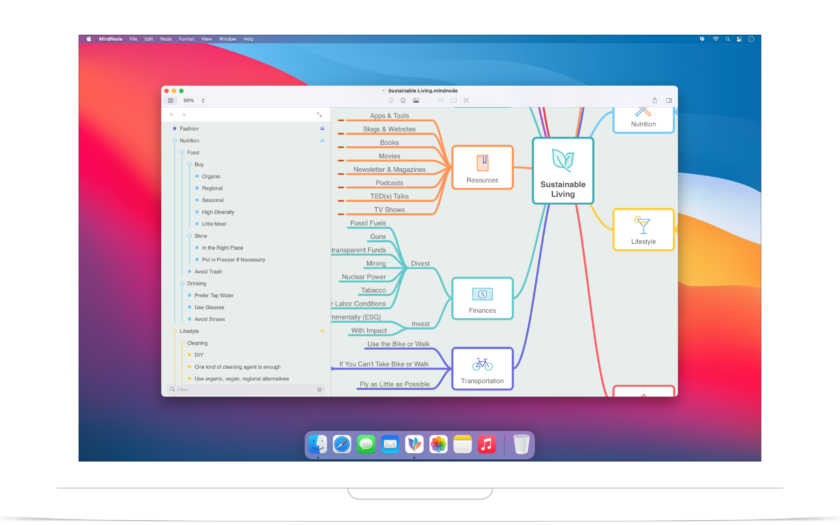
  • Planen, denken, strukturieren – MindNode im Portrait

    Planen, denken, strukturieren – MindNode im Portrait

    Ich möchte mich an dieser Stelle ganz herzlich bei IdeasOnCanvas bedanken, die mich in dieser Woche unterstützen. IdeasOnCanvas sind die Macher:innen hinter der bekannten Mindmap-Software MindNode. [Werbung]

    (mehr …)

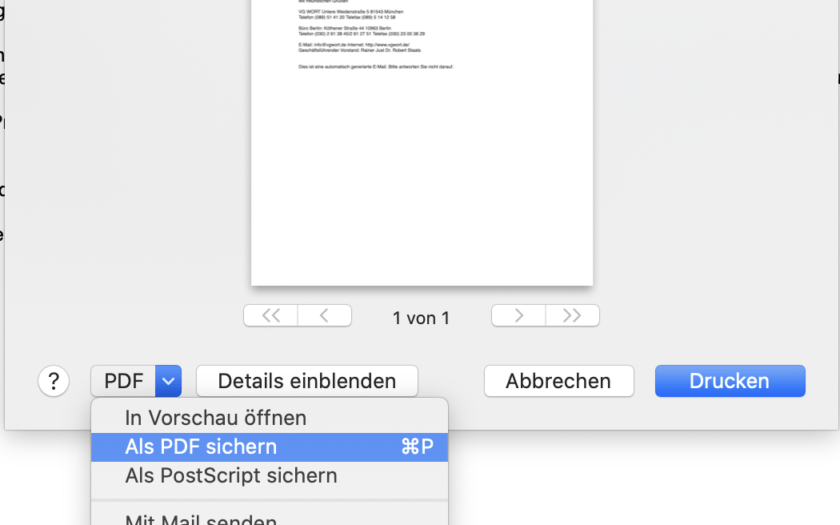
  • Alles als PDF drucken – mit nur 2 Klicks

    Alles als PDF drucken – mit nur 2 Klicks

    Alles auf dem Mac mit nur zwei Klicks als PDF drucken. So geht’s

    (mehr …)