Papierlos Studieren

  • Are Focus Modes actually iPad Profiles?

    Again and again, I hear the demand that iPads should have user profiles, as we know them from the Mac. As you know, you can create user accounts there so that several people can use one and the same Mac. This is not possible on the iPad. And it might be even more useful here, since an iPad is usually not a device that is in constant use. It would be obvious, for example, that a family shares an iPad. At the moment, only schools have the option to create multiple users per iPad.

    And no, Apple has not introduced profiles with iPadOS 14. But maybe they will come through the back door? Last year we got a new focus functionality. Where for years you could only choose between Do not disturb and the normal mode, it is now possible to create and configure additional focus modes. Among other things, you can set which people can reach you and which apps are allowed to notify you. This year, the feature was then both simplified and expanded. And with that, we might be on our way to a feature that could almost be creatively repurposed for multi-user profiles.

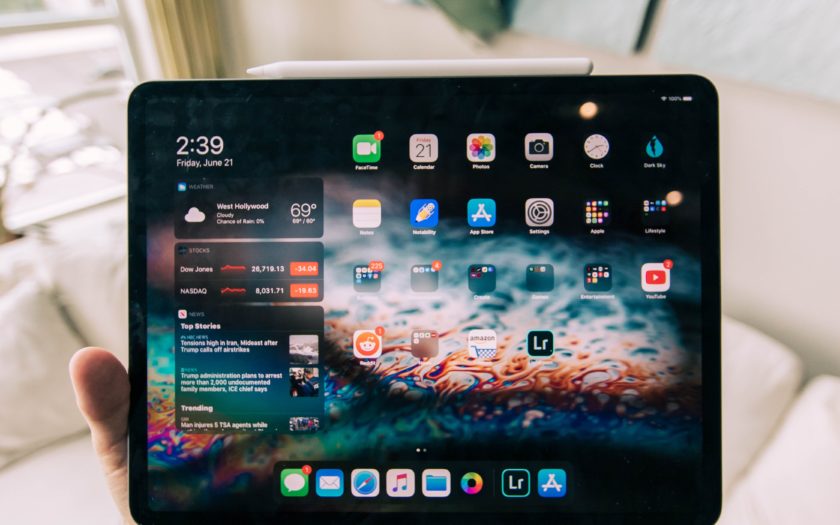
    The same iPad, hardly recognizable.

    Not only can you determine which apps and contacts you want to hear from, but you can also configure the homescreen, for example. You can also add an app to multiple homescreens, which makes it possible to determine individually and per focus (or per user) which apps appear there and which do not. This is great for thematic focuses, such as a reading focus, which I like to use. When I activate this, all notifications are deactivated, because I don’t want to be disturbed while reading. Beyond that, I also activate a special homescreen that otherwise remains invisible. There you can find all the reading apps that I normally use: Apple Books, Kindle, apps from libraries and newspapers.

    Screenshot of Reading Focus Mode in Settings App on iPad

    With the new iOS and iPadOS, however, so-called focus filters are now added. And they potentially take the whole system to a new level. These focus filters make it possible to filter content in apps. Currently, this primarily applies to some applications from Apple itself. In the Calendar app, various calendars can be shown and hidden, in Mail the same goes for certain mail accounts and in Safari it is possible to filter tab groups. And even though only a few third-party apps use this functionality so far, I’m optimistic that this will change soon. Currently, for example, the well-known writing app Drafts is a pioneer in this regard. For Drafts, you can set which workspace you want to see and which actions are displayed, among other things.

    I realize that a true multi-user mode would be something else, admittedly. For example, there is no password protection here, so there is nothing to stop me from simply disabling one focus and enabling another. And there’s still a lot of room to make more device settings configurable. It’s an interesting move, though, as Apple has shown in recent years that personalization and automation (in the form of shortcuts) are becoming increasingly important. So maybe we’ll soon be at a point where our iPads are suddenly multi-user devices.

  • Philosophical reflections on paperless work

    Philosophical reflections on paperless work

    The new semester starts soon in Germany and also in the USA it is time to get back to school. I would like to take this opportunity to explain what paperless studying or working means to me. What are my concerns, what advantages do I see, and what objections do I have? You could also see this article as my core beliefs in this area. Let’s dive in!

    The default for me is digital. This means that 99% of my work is now done digitally, with the only major exception currently being mail that reaches me in analog form. That doesn’t mean that I have to do everything digitally. For example, I often read physical books. And I think that’s a good thing. At least as long as it’s recreational literature. As soon as I want to work with it, I really try to avoid physical copies, because I can’t simply mark or copy passages. In short: When it comes to work, I curse every piece of analogy. In my free time, it’s a different story.

    Advantages of paperless work

    What do I see as the biggest advantages of a paperless way of working? I see four points in the first place.

    • Searchability / retrievability: Whether an integrated search function, folders, tags, or more recently graphs: All of these ordering and search principles are difficult or impossible to replicate in analog. And yet, for thousands of years, mankind has had to organize knowledge in analog form, and has done so. The existence of libraries is the best proof. And yes, of course there are sophisticated systems for organizing knowledge in analog form. But only in the digital world it is possible to quickly search through huge volumes of data or text, or to analyze them with artificial intelligence. And there’s nothing at all wrong with taking proven concepts for organizing analog data, transferring it to the digital world, and thus combining the best of both worlds.
    • Shareability: My second point is the shareability of digital goods. They don’t become less when you share them, they become more. What an ingenious feature, if you let it roll off your tongue. Of course, people are currently working everywhere to artificially limit or eliminate this incredible advantage. But in general this advantage remains, of course. And anyone who has ever stood in front of the shelf in the university library, only to find that someone else has already borrowed the last copy of the book relevant for the exam, will be happy when he:she finds out that the library has also purchased the eBook version.
    • Space savings and transportability: In my eyes, this is a point that should not be underestimated. The amount of books that used to require entire libraries can now be carried around in your pocket. And even if it’s just for a visit to the university seminar, it’s of course much more pleasant to have just one tablet instead of a pile of paper. And finally, you can’t forget anything at home if everything is in the cloud.
    • New workflows become possible: Perhaps the most important point, and one that I often see given too little consideration. Working digitally also means that certain boundaries suddenly no longer apply. Data can be manipulated and presented in a completely different way than it would ever be with physical works. But we need to consider this fact even more when we develop our tools. It’s great, of course, if you can mark up passages of text with a PDF reader. But basically, that’s just the digital equivalent of an analog action. It only gets fascinating when you go beyond that. Apps like LiquidText or MarginNote are worth mentioning in this regard. These apps do more than what would be possible with paper, and thus expand the space for thought and action. They take a known concept, implement it digitally, and then go a step further to take advantage of the digital opportunities to create a thinking tool that would not be possible in an analog format. In my eyes, Obsidian is also such a thinking tool, which expands our possibilities.

    What about the environment?

    Let’s move on to a topic that is much more controversial: environmental protection. Do we gain more because we save vast amounts of paper, or are the positive effects eaten up again because so much more electricity is suddenly consumed? In addition, there are rare earths that have to be mined and electronic waste that accumulates en masse. And even if sensational news about the huge consumption of streaming etc. was probably a bit exaggerated, it remains undisputed that the Internet and digital services consume an enormous amount of energy. Here’s an interesting study by the International Energy Agency if you want to take a closer look.

    We haven’t even talked about the e-waste mentioned at the beginning. In my eyes, the only solution is to consistently use green energy, recycling and the smart placement of server farms. These should, for example, be located primarily where it is already cold, so as not to require unnecessarily high cooling requirements. I realize that this brings further problems and that short distances from the server to the clients are quite important. But that doesn’t help. Then we just have to work on making this factor less important. At least we are seeing some movement among the big tech companies: Apple wants to become completely climate-neutral by 2030, including its supply chain and production, Google even wants to achieve zero carbon by 2030, Amazon „only“ net zero by 2040.

    Further problems: Haptics, hoarding and the everlasting search for the perfect system

    Then a completely different topic: haptics, sensation, directness. There is something satisfying about quickly flipping through a book or attaching sticky notes. For many, it’s certainly more intuitive than attaching bookmarks in a PDF, and I can understand that. There’s just something about flipping back and forth through a book and comparing notes. That’s why I’m a big fan of alternatives to the classic laptop, especially tablets with a stylus.

    Another problem is digital hoarding. It is of course much easier to collect vast amounts of material in digital than in analog. With just a few clicks, you can download entire libraries, which you then never use productively. So you need ways and means to actually deal with the collected material. What is needed here is self-restraint, then routines to productively process collected knowledge, and finally tools to make the collected knowledge accessible and retrievable again.

    Everyone has to work on self-restraint for themselves. I don’t have a good tip for that. But I do for everything else. It is very useful to always take notes directly on other people‘ texts, lectures, etc., in order to deal with the text. Only if you yourself try to comprehend unfamiliar knowledge, you will be able to really absorb it and understand it in the end, so that you can then deal with it critically. The many new tools that have come onto the market in the last two years or so are ideal for combining knowledge. For me, of course, it’s Obsidian. Links, Backlinks, the Graph View and various other plugins are a great help to not only organize my knowledge, but also to put it in relation to each other. I don’t think I could write my PhD as effectively as I currently do if I didn’t have these tools at my disposal.

    And that brings us right to the point and the last problem: the productivity trap. With all the nice apps, it’s easy to lose focus. I know this only too well from my own experience, that you suddenly spend hours on the new app and completely forget about the actual work. It’s also a good way to trick yourself, because it feels like work, but doesn’t really get you anywhere. At least not in the sense you intended. If you want to know what I mean, you can watch a video by August Bradley about his Notion System. I’ll leave it uncommented at this point. If you want to read more about it, you can do so in this article of mine that I published a good year and a half ago: Tool or Process?.

    What it’s really all about

    It’s about finding a way that suits you personally, is fun, makes your tasks easier, and doesn’t cost more (in the broadest sense) than it saves. It’s not about frantically doing everything digitally just to be “consistent“. But of course digital tools also have great value without making everything better than their analog equivalents. The conclusion from these considerations should be that we shouldn’t try too hard to simply copy analog ways of working into the digital world. Instead, we need to find our own ways to take advantage of the special opportunities. Liquid Text or Obsidian are incredibly powerful in this regard. They exemplify this approach because they bring possibilities to the work that would be impossible to implement in analog form.


    Photo by Kelly Sikkema on Unsplash

  • Notebooks 12 released

    Notebooks 12 released

    So… it’s been a while. In the past, I usually aimed for about two to three articles per month. Lately, I was not able to maintain this schedule due to several reasons. Most importantly, I try to focus on my PhD. Then, there was a (much needed) vacation and just a lot going on. And I am not sure that the slower cadence will change any time soon. Sorry!

    But enough of the excuses, back to the content: Notebooks 12 (or Notebooks 3 on the Mac) has been released. Notebooks is an app that is comparable to DevonThink or KeepIt. Sort of a digital notebook and document repository in one. I really enjoyed using the app for a while when I took my break from DevonThink. I especially like that the app is easy to understand and yet quite powerful. So if you’re looking for an app like this and don’t really need DevonThink right away, you’re in very good hands here. In addition, the developer is really very nice. I wrote him several times about questions and feature requests and always got very kind answers.

    In version 12/3 the most important improvement is now the completely revised link management and the introduction of backlinks. Backlinks have gained immense popularity since Roam Research, Obsidian, and many other knowledge management apps introduced them. The idea here is that in a note, you can also see which other notes link to it. Now Notebooks has that too, which is of course welcome.

    New technologies for better link handling

    But what I find even more interesting is Smart Link Resolution (SLR) and Automatic Link Management (ALM). Links are a fine thing, but they are also very fragile. For example, if you rename linked resources, they usually can’t be found anymore. The same is true if you move them. ALM tries to fix exactly that and uses the newly introduced backlinks for that. Link targets can be found again and links can be adjusted. SLR, on the other hand, actively searches for possibly matching link targets for links if they (supposedly) do not exist. This is useful in two use cases: Firstly, if you have an error in the link and secondly, you can also specify only a keyword in this way and SLR will then find the correct link target automatically.

    All in all, this sounds very promising. Unfortunately, I didn’t have the time to test the new version and ALM or SLR myself. But my experiences with Notebooks leave me optimistic. Notebooks addresses an important issue here. Developers need to work on more robust technologies for links. The backlink revolution we are currently experiencing in the PKM space is worth nothing if you are faced with a bunch of broken links after a few years. For that reason alone, Notebooks‘ approach is very commendable.

    An overview with all new features can be found here: release notes.

  • How I use visualization to make sense of my notes in Obsidian

    How I use visualization to make sense of my notes in Obsidian

    Obsidian is an incredibly powerful tool. However, it can be difficult at times, to get a sense of all the information in your vault. This is where visualization comes into play. In this two-part series, I’d like to talk about two plugins that help me greatly in working with my data visually: the Kanban plugin by MG Meyers, and Excalibrain by Zsolt Viczián.

    (mehr …)
  • Apple’s WWDC 2022: What does it bring for students and researchers?

    Apple’s WWDC 2022: What does it bring for students and researchers?

    Apple’s World Wide Developers Conference keynote is always one of the most interesting dates in my tech year. I love to see what awaits us in the next iteration of iOS, iPadOS, or macOS, respectively. This Monday, it was that time again.

    (mehr …)
  • Inbox Zero is the path to insanity

    Inbox Zero is the path to insanity

    The idea of ‘Inbox Zero’ is compelling. The promise goes like this: Just clean out your inbox every day and your productivity will soar. And, to a certain degree, this is true in my opinion. It is a good idea to pursue the goal of an empty inbox. By splitting up your mail into different categories and define ways on how to handle them, you can break up the vast number of mails we face every day. I probably should write about my process at some point. But not today. Today, I’d like to write about the underlying motivation of Inbox Zero: Control.

    Inbox Zero makes us feel on top of things.

    But that’s only true as long as we can keep up the pace. Because the problem with Inbox Zero is that it never stops. Inbox Zero doesn’t forgive breaks, doesn’t forgive downtime, doesn’t know vacation. So I argue that, in the long run, Inbox Zero tends to achieve the opposite of what we’re aiming for. It becomes an ever-increasing burden to work on everything anew every day.

    This becomes especially clear when we apply the principle to areas other than just email, as more than a few probably do. Read Later apps like Instapaper are a particularly fatal case. Who doesn’t know it? You collect article after article in the firm belief that one day you’ll read it all. The day will come when the article collection is empty. But that day never comes. Because you always find more articles that sound exciting than you can read. And so the pile gets bigger and bigger. And with it also the bad conscience. On top of that, that’s just reading. We[^1] have been talking for years now about concepts like the Zettelkasten and why it’s so important not only to consume content, but also to work with it, to write notes. When is that supposed to happen, for crying out loud? Who has that kind of time? In the end, completionism destroys you.

    What is a suitable solution?

    I think there can only be one sensible solution: Acceptance. That’s hard, especially if you’re the kind of person who is constantly working on their productivity and having fun doing it. But it just doesn’t work. If you receive (a lot of) e-mails, you simply have to live with the fact that something might slip through. And otherwise reduce where possible. I will probably write a separate article about this soon.

    When it comes to articles or books that should be read, only a radical change in mindset helps. You simply can’t look at reading lists and Read Later apps as a to-do list anymore, but as a reservoir. A reservoir of never-ending, exciting texts. A bit like streaming providers. It’s not like anyone plans to binge-watch the entirety of Netflix.

    I know it’s hard. But it’s the only way if you don’t want to go insane.


    I would like to thank Eleanor Konik for the inspiration for this article. She’s wonderful anyway, and I highly recommend her Obsidian Roundup newsletter to anyone interested in Obsidian. And if you also appreciate entertaining info on obscure topics, her second newsletter ‚The Iceberg‘ is a great place to go!

    Photo by Thiébaud Faix on Unsplash

  • The iPad Buying Guide (April 2022)

    The iPad Buying Guide (April 2022)

    One of the most important questions that arises for paperless studying is that of reading and note-taking. The iPad is generally a good solution for this. In this article, I have a look at all currently available iPad models and answer the question: Which iPad should I buy for university?

    The obvious solution: laptops

    But first, let’s take a quick look at the obvious solution: laptops. If you look into any lecture hall, you will see many, many MacBooks (usually MacBook Airs), supplemented by one or the other Samsung device, rarely Lenovos or others.

    That makes sense, since most people still prefer laptops, as tablets are not „real“ computers. However, it is exactly the other way around when it comes to note-taking. You can take notes very quickly with the right practice, but it becomes immediately more problematic when annotating slides. If you want to add a graphic or a diagram, you are quickly at a loss. Before you have recreated such elements with mouse and keyboard, the professor has long since moved on to the next topic. It is therefore worthwhile to think about whether the laptop is still the most suitable solution for lectures, or whether a tablet or convertible would make more sense.

    However, I would like to say one thing: If the decision is laptop or tablet, I would still go for the laptop. There are certainly cases where you could get by with just a tablet. As a rule, however, a classic laptop is still the more universal solution and those who have to decide for one or the other should probably rather prefer the solution with which everything is at least feasible. So, the following sections are aimed at all those who either still have a computer at home anyway, or at least somehow still have access to a classic computer when they need one.

    It would lead too far to make an extensive laptop comparison here, which is why I would like to leave it at pointing out my own current laptop: The [M1 MacBook Air*][2] from last year. Since Apple builds its own processor, the MacBook has an almost ridiculously long battery life, is really fast and since Apple’s hardware usually ages very well, you can definitely cover your whole time at the university with it (yes, Bachelor and Master). And at currently $1,149.00 for the model with 512GB SSD (in Apple’s education store), you can definitely consider this investment. In any case, I am extremely satisfied.

    The better solution: A tablet with keyboard and pen.

    When it comes to diagrams/graphics/drawings, it turns out that not everything was worse in the past. With a little practice, almost everyone can get a usable diagram on paper in no time.

    To be effective in this respect even without paper, I therefore recommend a combination of tablet, keyboard and corresponding stylus. This combination has all the advantages: With a (Bluetooth) keyboard, you can take notes just as quickly as with a laptop keyboard. The pen allows drawing or direct handwritten notes and everything is directly digital, as it should be.

    Which iPad should it be?

    So it’s explicitly only about which iPad I would recommend for university. However, years of experience show me that you can do a lot right with Apple’s tablets. They’re fast as hell, come with a variety of great apps out of the box, feature top-notch build quality, and thus maintain their value – in part because they get software updates for many years. Plus, high-quality apps like GoodNotes or LumaFusion are usually developed for iPadOS first and Android or Windows second – and sometimes not at all. This isn’t meant to be an advertising block for Apple, but in the tablet market, they’ve simply been leading the way for years in my eyes.

    So what is my current recommendation? The answer is somewhat differentiated. Apple currently has [four models on offer][5]: the iPad without a name suffix (9th generation, subsequently iPad 9) with a 10.2-inch display, the iPad Air (5th generation and 10.9 inches), the iPad Mini (6th generation, 8.3 inches) and the iPad Pro (5th generation, 11 or 12.9 inches). All models except the iPad 9 support the second generation pencil. However, even though the Pencil 2 does a lot better than its predecessor, both are great for digital note-taking and drawing, so the models do not differ too much in this respect.

    Display size as an important decision

    The most important difference is the screen size. Here you have to know (or best try out in the store) which display size you prefer. The normal iPad and the iPad Air are most likely to be in the usual iPad size here. If you want a large device that also allows you to relax and display two documents at the same time, you have to go for the Pro. At the other end of the continuum is the Mini, which is more of a digital notepad, but might be interesting for that very reason.

    In terms of performance, there is more than enough leeway in all versions. The iPad 9 is the most likely to fall behind, since it „only“ features the A13 chip, which is from 2019. However, if you do not use the iPad for editing and exporting huge video files, this is not a problem at all.

    The Mini, on the other hand, has the newer A15 chip, and the Air and Pro models even have the same M1 processor, that can also be found in the MacBook Air. So, Apple does not show any weakness when it comes to the processor, and you will have fun with every model in this respect.

    How much storage is necessary?

    Once you have decided on a size, you should consider well how many gigabytes of internal storage you need. My rule of thumb here would be that 64 GB can work, and it becomes comfortable starting at 128 GB. Just take a look at your smartphone and see how much internal storage you have. That should be a good indicator. iPad 9 just got an overhaul in terms of storage tiers and features a 64 GB option (329 $) and one with 256 GB (479 $). With the Mini, you can also choose between 64 GB for 499 $ or 256 GB (649 $) and with the Air as well (64 GB for 500 $ or 256 GB for 749 $). The two Pro models then come with the largest selection. Here you can choose between 128 GB, 256 GB, 512 GB, 1 TB and even 2 TB.

    Finally, you still have to know if you need LTE or if Wi-Fi is enough. Wi-Fi will probably be enough for most users, but only those who are really on the road a lot should consider LTE.

    An external keyboard is actually a must

    After we have taken care of the inner values, we will now look at the accessories. The question of the stylus is quickly answered. The second-generation Pencil is used for the Air and Pro, and the first-generation Pencil for the 8 and Mini. If you want to save a bit and do not need all functions, you can also take a look at the Logitech Crayon*. The only difference between the Apple Pencil and the Crayon is the pressure sensitivity. The Apple Pencil can detect how much you press down when writing or drawing, but the Crayon cannot. Therefore, it only costs 69 $ and not 99 $ (Gen. 1) or 129 $ (Gen. 2) (All prices as of 2022-04-26). Both versions of the Pencil can also be found cheaper if you search for them at Amazon* or other online retailers.

    It gets more confusing with a possible keyboard. In my experience, it is very helpful to have a keyboard for the iPad as well, since it makes writing so much easier. Here, the basic decision would have to be made whether you want a keyboard from Apple or one of the many variants from third-party suppliers like Logitech. It is impossible to make a recommendation due to the large number of products. Personally, I would stick to one of the big and established manufacturers like Microsoft or Logitech. Another trusted brand in this space is Brydge.

    If you prefer a very inexpensive solution, the [1 BY ONE Bluetooth Keyboard*][7] might be a good option for you. I have on at home and think that it is actually a pretty decent keyboard for the prince. Just note that the 1 BY ONE can’t be integrated with an iPad, so you need an iPad cover in order to prop it up. Logitech’s Slim Folio Pro* might be interesting for those who like to have a keyboard and case in one.

    Apple’s (expensive) solution

    The second option is of course to use Apple’s own solution. What comes into question here again depends on the selected iPad. Apple currently offers three models: the Smart Keyboard, the Smart Keyboard Folio and the Magic Keyboard.

    Smart Keyboard and Smart Keyboard Folio are more or less the same product, except that the former is compatible with the old iPad design, which the iPad 9 still has. The Folio is then the choice for all iPads with new designs (flat edges, narrower borders), i.e. the iPad Pro and iPad Air. However, Apple’s keyboards are not a cheap affair. The Smart Keyboard currently costs 159 $ in the Apple Store, the Folio even 179 $. For that, typing on it is really fun. But of course, you can also get that for much less money.

    If all that is not enough, you can buy the Magic Keyboard for a whopping 299 $. For that, you get a pretty sophisticated „hover mechanism“ to attach the iPad to the keyboard and – much more important – a trackpad. Since that will probably only be interesting for very few people at this price, I will leave it at this point.

    For many, the view should probably go to third-party providers like Logitech, Brydge, or 1 BY ONE for reasons of rationality, anyway.

    Digital note-taking: the iPad as a convincing solution.

    This article was only about iPads, Android or Microsoft tablets or convertibles were not considered due to my lack of experience. This is not ideal, but I can say in good conscience that you won’t go wrong with an iPad in any case. Without advertising it unnecessarily: In the tablet market, Apple sells the most devices for a reason. They are simply very, very good, durable and not that expensive – at least compared to the competition.

    But which iPad would I recommend? If it’s just about having a companion device, for example to annotate slides in the lecture, or to read texts for the seminar, then probably the iPad 9 with 256 GB storage for currently 479 $. You get a superbly manufactured tablet with a still fast processor and the option to use it with keyboard and pen.

    If you want a bit more of everything, including modern design, a larger color selection, larger display and faster processor (M1, baby!), you can go up a notch to the iPad Air. However, since the price for 256 GB of storage is already 749 $, I think the premium is only justified if you really have the money to spare and can get real value out of one of the features or want the new design.

    iPad Mini and Pro as edge cases

    That leaves the iPad Pro and the Mini. Let’s start with the second one. I can’t really recommend the Mini to anyone unless you absolutely want a very expensive notebook. Don’t get me wrong, the Mini is exciting in its own way. However, since it’s so darn small (8.3″), you can hardly edit slides or PDFs on it in a meaningful way, which rather disqualifies it for everyday university use. Since the 256 GB version also costs a whopping 649 $, it will probably be an option for very few people.

    That leaves the Pro. Who is it for? I think for those who only want to work with the iPad and want the absolute best that Apple is currently offering. From M1 chip, to LiDAR sensor, to 12MP camera, to 5G, this tablet really has it all on board. And then, of course, there are those who would like a really big iPad. You can’t get the 12.9″ of the big iPad Pro on any other tablet. However, even the smallest storage version (128 GB) costs 1099 $. And that is probably not within the realm of possibility for most students.

    To help you decide, here is an overview of the four current models. By the way, you should always look at providers like [MacTrade][10] to see if you can get a discount. These are often available for students, especially at the start of the semester.

    Modell Displaygröße (in Zoll) Prozessor Stift / Tastatur Speicher Preis (in $)  
    iPad Mini 8.3 A15 Pencil 2. Gen / Bluetooth Tastaturen 64GB 499  
    iPad Mini 8.3 A15 Pencil 2. Gen / Bluetooth Tastaturen 256GB 649  
    iPad 9 10.2 A13 Pencil 1. Gen / Smart Keyboard 64GB 329  
    iPad 9 10.2 A13 Pencil 1. Gen / Smart Keyboard 256GB 479  
    iPad Air 10.9 M1 Pencil 2. Gen / Magic Keyboard o. Smart Keyboard Folio 64GB 599  
    iPad Air 10.9 M1 Pencil 2. Gen / Magic Keyboard o. Smart Keyboard Folio 256GB 749  
    iPad Pro 11 M1 Pencil 2. Gen / Magic Keyboard o. Smart Keyboard Folio 128GB 799  
    iPad Pro 11 M1 Pencil 2. Gen / Magic Keyboard o. Smart Keyboard Folio 256GB 899  
    iPad Pro 11 M1 Pencil 2. Gen / Magic Keyboard o. Smart Keyboard Folio 512GB 1099  
    iPad Pro 11 M1 Pencil 2. Gen / Magic Keyboard o. Smart Keyboard Folio 1TB 1499  
    iPad Pro 11 M1 Pencil 2. Gen / Magic Keyboard o. Smart Keyboard Folio 2TB 1899  
    iPad Pro 12.9 M1 Pencil 2. Gen / Magic Keyboard o. Smart Keyboard Folio 128GB 1099  
    iPad Pro 12.9 M1 Pencil 2. Gen / Magic Keyboard o. Smart Keyboard Folio 256GB 1199  
    iPad Pro 12.9 M1 Pencil 2. Gen / Magic Keyboard o. Smart Keyboard Folio 512GB 1399  
    iPad Pro 12.9 M1 Pencil 2. Gen / Magic Keyboard o. Smart Keyboard Folio 1TB 1799  
    iPad Pro 12.9 M1 Pencil 2. Gen / Magic Keyboard o. Smart 2TB 2199  

    Photo by Roberto Nickson on Unsplash

    Links marked with an asterisk * are affiliate links. With a purchase I profit by a small commission without the product becoming more expensive for you. Thus, it is a wonderful way to support my work.

  • Farewell, OmniFocus, farewell!

    Farewell, OmniFocus, farewell!

    For ages, I’ve been a devout OmniFocus user. Even more so after reading Kourosh Dini’s excellent book Creating Flow with OmniFocus. OmniFocus was an integral part of my productivity system. Most days, OmniFocus’ familiar interface was the first thing in the morning and the last in the evening on my computer screen. One could say, it was the most important app in my life.

    However, sometimes it feels like a company is moving in a direction you don’t want to follow anymore. I had this feeling first when OmniFocus introduced its built-in automation engine. Yes, it is an incredible achievement from a technical standpoint. However – how many users need this on even a semiregular basis? It seems to me that this is only used by such a tiny fraction of the user base that it feels more like being developed for themselves and probably a handful of extreme automation power users. Don’t get me wrong, no offense against extreme automation power users. I just think that they have left an approach which is useful to most of their users. I am not certain if this is something that serves them well in the future.

    The stroke that broke the camel’s back, though, was the ongoing beta for the new iPad/iPhone version. It is true that OmniFocus looks quite dated and that a new approach is urgently needed. And they delivered on this front: the new design looks way more modern than the old one. And yet, I really don’t like it. OmniFocus always had a busy interface, and I am fine with that. Otherwise, I wouldn’t have used it for years in the first place. Unfortunately, the new version tries to look modern, not be modern. It feels like they try to implement a modern interface by using Swift UI, while sticking to too much cruft from all those years.

    Redundancy is not a good design principle

    It also became more complicated than it has been before. In my eyes, the old design and way of handling things was way more intuitive. Instead of simplifying things, they added complexity and visual overload. For example, why do we need two inspector views, one inline and one as a separate pane? This does not just feel redundant, it is redundant. And except for safety concerns, redundancy is not a great design principle. Also, the new way of displaying Perspectives is not a good fit, in my opinion. I used to use a lot of them because Perspectives are one of the most useful features in OmniFocus. In the new version though, Perspectives are stuck to a scrollable strip, hiding a fair amount of them. Especially on the iPhone, where this strip is located horizontally at the bottom of the screen, most of my Perspectives are not instantly accessible. The list goes on, but I stop at this point.

    I tried to force myself getting used to it and to like it for a couple of months, but to no avail. Finally, and with a heavy heart, I decided to quit OmniFocus. I considered several potential successors and landed on GoodTask, a highly customizable client for Apple’s Reminders app. I certainly will write about my experiences and use case at some point. Oh, and don’t get me wrong: I might return at some point, just as I have done with DevonThink. But for now, I have to leave my dear old friend OmniFocus behind. I wish them luck.


    Photo by Jonathan Farber on Unsplash

  • Eine neue Ära für Papierlos Studieren / A new beginning for this blog

    Eine neue Ära für Papierlos Studieren / A new beginning for this blog


    Es ist jetzt ziemlich genau 4 Jahre her, dass ich den ersten Artikel auf diesem Blog veröffentlicht habe. Ich wollte damals einfach eine Möglichkeit haben, über eine Leidenschaft von mir zu schreiben: Digitale Produktivität, Apps, Workflows, Technik-Kram. Und da ich schon einige Jahre Erfahrung mit einem politischen Blog gesammelt hatte (Blog | Buch), war es naheliegend, wieder einen Blog zu starten. Seitdem sind 145 Artikel und ein Buch hinzugekommen. Zugleich hatte und habe ich mehr Erfolg damit, als ich je gedacht hätte. Monat für Monat lesen mehrere Zehntausend Menschen meine Artikel und es hat sich die ein oder andere spannende Gelegenheit ergeben. Ich war Podcast-Gast, habe Vorträge gehalten, Seminare gegeben und Artikel geschrieben. Nicht zuletzt habe ich spannenden Leute kennengelernt, die zum Teil Gastbeiträge hier veröffentlicht haben. (Apropos: Wenn du gern einen Gastbeitrab bei mir veröffentlichen möchtest, schreib mir unter [email protected]).

    Im letzten Jahr liefen die Dinge dann zunächst mal langsamer. Aus privaten (sehr erfreulichen) Gründen. Nachdem ich mich an die neue Situation gewöhnt hatte und alles langsam wieder normal(er) wurde, stellte ich mir die Frage, wie es mit dem Blog weitergehen soll. Vor allem auch, an welche Zielgruppe er sich richten soll. Student war ich schließlich schon eine Weile nicht mehr. Gleichzeitig hatte ich vor einiger Zeit begonnen, meine Beiträge auch auf Englisch zu veröffentlichen. Ich hatte dafür ein Plugin genutzt, was quasi eine zweite, englischsprachige Version meiner Seite erzeugt, inkl. eigener Domain. Jedoch war das immer sehr mühsam. Wenn ich einen Artikel fertig geschrieben, überarbeitet und schlussendlich veröffentlicht habe, möchte ich mich nicht nochmal ran setzen, um alles auch noch zu übersetzen und erneut in den WordPress-Editor zu klöppeln. Zugleich war ich, vor allem durch mein Interesse an Obsidian, immer öfter in englischsprachigen Kontexten unterwegs.

    Ich habe daher den Entschluss getroffen, nur noch auf Englisch zu schreiben. Der Grund dafür ist einfach: Ich möchte mit einer größeren Community interagieren. Da ist natürlich zum einen die US-Community. Schon jetzt kommen 40% meiner Besucher:innen aus den USA. Aber das ist eben nicht alles. Auch die komplette europäische, asiatische, afrikanische und südamerikanische Community spricht wahrscheinlicher Englisch als Deutsch. Und von daher ist es für mich nur folgerichtig, nun auf Englisch umzustellen. Eine Seite in zwei Sprachen mit Content zu versorgen, ist für mich nicht nachhaltig möglich und zieht auch eine Reihe technischer Schwierigkeiten nach sich. Also so. Mir ist klar, dass ich dadurch auch Leser:innen verlieren werde. Ich habe in den vergangenen Jahren auch immer wieder Zuschriften älterer Leser:innen bekommen, die nun möglicherweise keinen Zugang mehr finden. Das tut mir leid und ich würde es gern vermeiden. Letztendlich habe ich aber die Entscheidung getroffen, dass es so besser für die Zukunft des Blogs und mich ist. Inhaltlich werde ich mich weiterhin mit den Dingen befassen, die auch in der Vergangenheit hier zu finden waren: (Kritische) Gedanken zu Produktivität, Apps für Wissensarbeiter:innen, passende Workflows und ein bisschen (zu viel) Apple.

    Natürlich werden alle bisher erschienen Artikel zugänglich bleiben. Neue Artikel erscheinen aber nur noch auf Englisch. Wer aber eine Frage hat, kann mir nach wie vor gern auf Deutsch schreiben. Auch Anfragen für persönliche Beratungen kann man mir gern stellen und dann auf Deutsch abhalten. In erster Linie freue ich mich jetzt aber auf das, was da kommt. Der Blog wird von nun an übrigens auch unter neuem Namen firmieren: Aus https://papierlos-studieren.net wird https://go-paperless.net. Die alte Adresse wird noch eine Weile auf die neue verweisen und somit erreichbar sein, also keine Sorge. Und damit auf die nächsten vier, fünf, wer weiß wie viele Jahre!

    Du hast Gedanken zur Neuausrichtung des Blogs? Willst einen Gastbeitrag schreiben? Mich als Dozent oder Vortragsredner buchen? Oder brauchst persönliche Beratung für mehr digitale Produktivität? Dann schreib mir eine Mail: [email protected]!

    A new beginning for this blog

    It’s been pretty much exactly 4 years since I published the first article on this blog. At the time, I just wanted a way to write about a passion of mine: Digital productivity, apps, workflows, tech stuff. And since I already had a few years of experience with a political blog (Blog | book), it was obvious to start a blog again. Since then, 145 articles and a book have been added. At the same time, I have had and continue to have more success with it than I ever thought I would. Month after month, tens of thousands of people read my articles and one or two exciting opportunities have arisen. I’ve been a podcast guest, given talks, seminars, and written articles. Last but not least, I’ve met exciting people, some of whom have published guest posts here. (Speaking of which: If you would like to publish a guest post on my site, write me at [email protected]).

    So here’s a big thank you to my readers and everyone who has worked with me over the years. In the last year, things went slower at first. For private (very happy) reasons. After I got used to the new situation and everything slowly got back to normal, I asked myself how to continue with the blog. Above all, to which target group it should be directed. After all, I hadn’t been a student for a while. At the same time, some time ago, I had started to publish my posts in English as well. I had used a plugin, which creates a second, English version of my site, including its own domain. However, this was always very tedious. If I have written an article, revised and finally published, I do not want to sit down again to translate everything and put it back into the WordPress editor. At the same time, driven mainly by my interest in Obsidian, I found myself more and more in English-speaking contexts.

    I therefore made the decision to write only in English. The reason is simple: I want to interact with a larger community. There is of course the US community. Already, 40% of my visitors come from the USA. But that’s not all. The entire European, Asian, African and South American community is more likely to speak English than German. And so it is only logical for me to switch to English now. Providing a site with content in two languages is not sustainable for me and also entails a number of technical difficulties. So there you go. It is clear to me that I will also lose readers. In recent years, I have also received letters from older readers who may no longer be able to access the site. I am sorry about that and would like to avoid it. But in the end I decided that it is better for the future of the blog and for me. In terms of content, I will continue to deal with the things that have been here in the past: (Critical) thoughts on productivity, apps for knowledge workers, matching workflows and a bit (too much) Apple.

    Of course, all previously published articles will remain accessible. But new articles will only be published in English. But if you have a question, you are still welcome to write me in German. Also, requests for personal consultations can be sent to me and then will be held in German. But first and foremost, I am looking forward to what is coming. By the way, from now on the blog will also operate under a new name: https://papierlos-studieren.net becomes https://go-paperless.net. The old address will still point to the new one for a while, so don’t worry. And so here’s to the next four, five, who knows how many years!

    Got thoughts on the blog’s new direction? Want to write a guest post? Book me as a lecturer or speaker? Or need personal advice for more digital productivity? Then email me: [email protected]!

  • Add your COVID vaccination certificate to the Wallet app with iOS 15.4

    Add your COVID vaccination certificate to the Wallet app with iOS 15.4

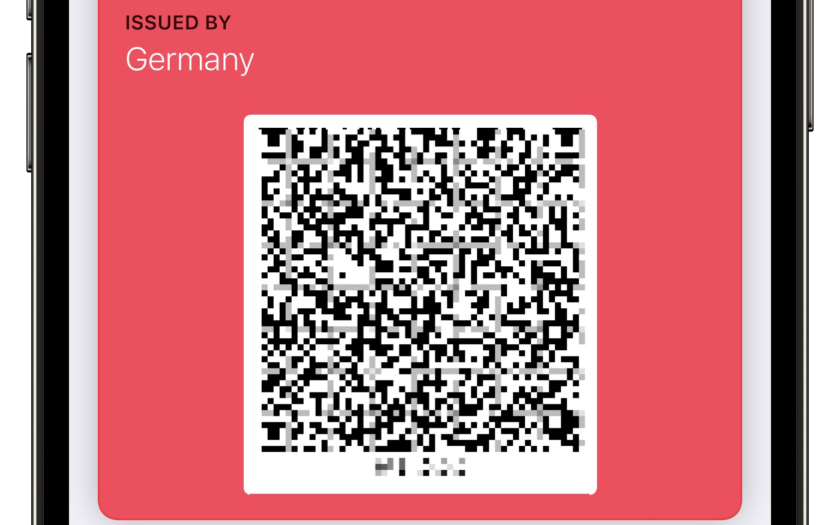
    The latest iOS release 15.4 has a few new features to offer, including the ability to use FaceID while wearing a mask. Also new is the function to import the Covid vaccination certificate (for EU citizens) into the iPhone Wallet and the Health app.

    To accomplish this, you don’t have to do anything other than scan the QR code you received after getting vaccinated – that’s it. After that, you can find the proof in both Health and Wallet.

    With a quick double-click on the side button of the iPhone, you can open the Wallet app.